Shell Scripting Intro
 The OCF Decal presents
Are you using vim?
For today's examples I will be using VIM. Hopefully you guys have gotten a chance to look at VIM but maybe it is still confusing and that's okay. It took me 6 months to get decent at using vim and I am still learning. To quote Jaysa:
"If you're really dedicated to learning, try to learn a new command each day. Use that command whenever you get the chance until it feels natural. The more commands that you know, the cooler you'll look to the guy behind you while you're taking notes in class."

If you are looking to improve your vim skills there is a good article on improving progressively. I do recommend installing vimtutor for the most interactive learning experience.
What is the shell?
A shell is software program that acts as an interface between a user and the operating system's core (kernel) So shell scripting can be seen as code we write to interface with our computer. Here is an example
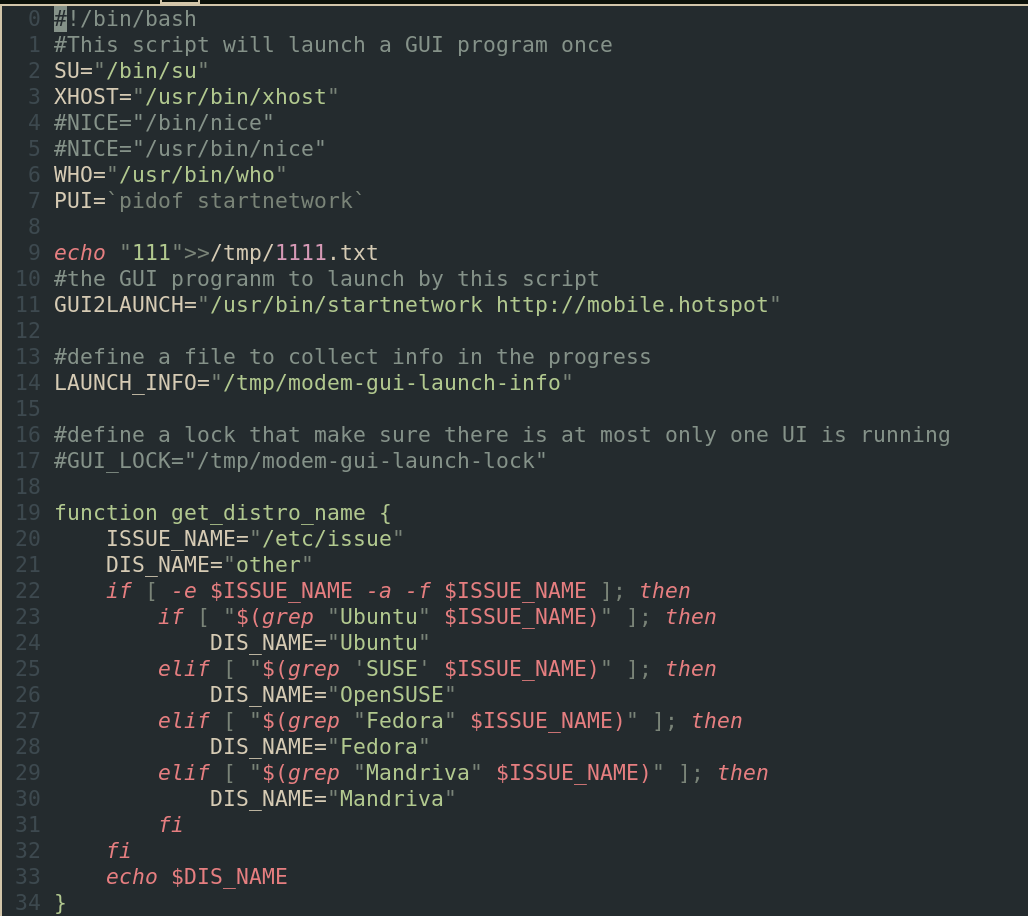
To make sure shell scripts work on a all UNIX operating systems, POSIX (Portable Operating System Interface)
sets a standard (IEEE Standard 1003.1) by which all operating systems must comply. This means the same command
written to your default linux shell sh will always work no matter what OS you are running. Nowadays there are
modern shells such as Bash and Zsh which add their own features on top of sh.
What are shell scripts used for?
Shell scripts are used everywhere! They are like the glue behind system administration responsible for all different types of automation.
Many times you will encounter shell commands embedded in configuration files to run certain tasks. However when tasks get more complicated, having a strong background in shell scripts becomes very useful
Just the other day I installed a linux package called downgrade. It is actually a single shell script (/bin/downgrade)
So far I've shown you complicated shell scripts but they can be super simple
- Change monitors
- Teleport around computer (edit files)
- rc files (run commands)
- Change backgrounds randomly
- Christmas Tree
The terminal can be used to directly run shell commands
echols(-a -l)grep
Mad libs
Today I'm going to show you how to make a little mad libs shell script.
First we'll make a file and in it we can write the following code
#!/bin/bash

read -p "Enter a noun: " noun
printf "There once was a %s" "$noun"
The top of the file is the shebang and if we remember from earlier, this tells the computer which interpreter
we should use which is important if we are using zsh or bash since the computer might default to sh.
The first line reads user input and saves it to the "variable" noun. The -p flag
allows us to write a prompt for the user. printf lets us write output to the user.
Pretty Neat!
Lets make the Mad Lib more interesting
read -p "Enter a noun: " noun
read -p "Enter a verb (past tense): " verb
read -p "Enter a location: " location
printf "There once was a %s. The %s %s in the %s." "$noun" "$noun" "$verb" "$location"
Notice, we added more %s to include more inputs to our f string. Cool cool now we can write a story and have it output to the user.
Notes:
- It is important that
$nounis in quotes
Randomizing Mad libs
We can use the shuf command to randomize lists of items. For example
ls | shuf randomizes the directory. (This was how I chose random backgrounds)
We can combine this with a long list of nouns to create a random mad lib
curl --silent https://gist.githubusercontent.com/trag1c/f74b2ab3589bc4ce5706f934616f6195/raw/5aa7de70fc83664017cb97dd02cbf6dc76b9e4a3/nouns.txt | shuf -n 1
What is happening here? Three main things are at play
curl- curl gets the information from the web which in this case is a long list of nouns
--silentsuppresses the output of grep so we just get the raw information. This is a flag on many commands
- pipe operator
|- As we've seen above, the pipe sends the output of the first command into the second
- What happens when you run
ls | grep "filename"
shuf- Shuffles the list provided
-n 1returns the first line of the list we just shuffled
Now our Mad libs runs by itself and generates some pretty silly prompts. Fire!
Saving mad libs to file
We can prompt the user to save the mad lib to file.
read -p "Would you like to save the file? (y/n): " yesno

if [ "$yesno" = "y" ]; then
    echo "Saving to file"
    echo "$madlib" >> madlibs.txt
else
    echo "See ya!"
fi
What exactly is happening here? Again we are using a read statement to get the user's input. A then we initiate an if statement to see if the user replies "y" or "n".
If the user replies yes then we save the madlib to a file
The > operator outputs to a file, overwriting anything if present.
The >> operator appends to the end of a file.
You could also do this with a case statement
case "$yesno" in
  “yes”)
    echo "Saving to file";;
  “y”)
    echo "Saving";;
  *)
    echo "See ya"
esac
Notes
- It is important to maintain spaces in your if statement brackets
- Don't forget quotations when you are dealing with variables
- Read error messages very carefully. Oftentimes you will have made a syntactical error but the interpreter thinks you did something else.
Good luck with the lab and please ask questions!